
Practical guide
Can’t select scanned PDF text? Replace a word privately
Open Edit PDF →A scanned page may be a picture rather than selectable text. FileMelon uses local English text recognition to find words you can change. Recognition, font matching and background repair can be imperfect, so review the result.
Make a small correction
- Open Edit PDF, choose the PDF and wait for the page to finish reading.
- In Edit text mode, click or tap the recognised word. Its outline shows the selection.
- Enter the replacement. Adjust size, font, bold, italic or colour when necessary.
- Choose Apply changes. Review the page and choose Download PDF.
A scan’s recognition results depend on its quality. Check the selected word before editing. Blurry, skewed or very small text may be recognised incorrectly or missed.
A correction on a coloured sample page
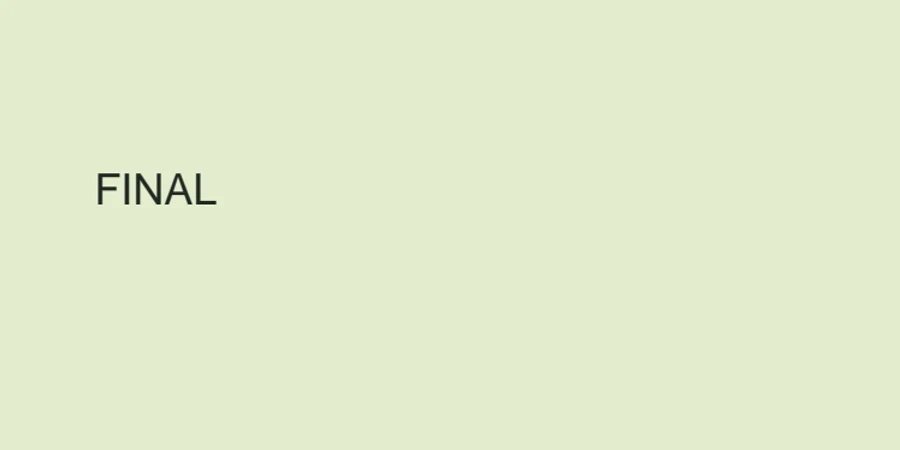
We generated a fictional scan reading “DRAFT”, recognised it in the current editor and replaced “DRAFT” with “FINAL”. We then exported and rendered the PDF to check the saved result.
Position the replacement
Select the word and drag the visible Move handle, or use the position arrows in its settings. On a computer, keyboard arrows also move the selected word when focus is on the PDF; Shift plus an arrow makes a larger move. While typing in the text field, arrows move the text cursor instead.
Apply your change before selecting another word. Each word moves independently. Longer replacements can overlap neighbouring text; adjust the position or size and inspect the page.
On a phone, selecting a word does not immediately need to open the keyboard. Tap the text field to type; dismiss the keyboard when you need more preview space. Use the Move handle or position buttons for small adjustments.
Check the downloaded PDF carefully
- Confirm that the recognised text was correct and the replacement fits.
- Check the background for visible repair marks, especially on textured or coloured scans.
- Expect an approximate font on scanned pages. Choose a substitute if needed.
- Open the downloaded PDF and check the saved result, not only the editor preview.
This workflow changes visible page text. It does not certify confidential redaction or promise a fully searchable PDF. Keep the original. For text extraction use PDF to text; for page order use Organise PDF.
Your PDF and filename are not uploaded to FileMelon. OCR and editing run in the browser, which downloads the necessary website assets.