
Practical guide
Convert iPhone HEIC photos to JPG on Windows
Open HEIC to JPG →If a website or application cannot open your iPhone photo, convert a supported still HEIC image to JPG. FileMelon processes the photo on your device and creates a separate download.
From an iPhone photo to a Windows-friendly JPG
HEIF is an image format used by Apple devices; photos often have a .heic extension. JPG is widely supported by image viewers and upload forms. Some sharing or import methods may already convert an iPhone photo to JPEG, so check the file you actually received.
- Save the still HEIC photo to your PC using your usual transfer method. Keep the original.
- Open HEIC to JPG in your browser and choose the file.
- Leave JPG selected, check the preview, then choose Prepare image.
- Choose Download image. Open the downloaded JPG in your image viewer and check its appearance.
There is no separate desktop converter to install for this workflow. The website downloads its decoder when needed; the selected photo is processed locally.
We tested an actual HEIC file
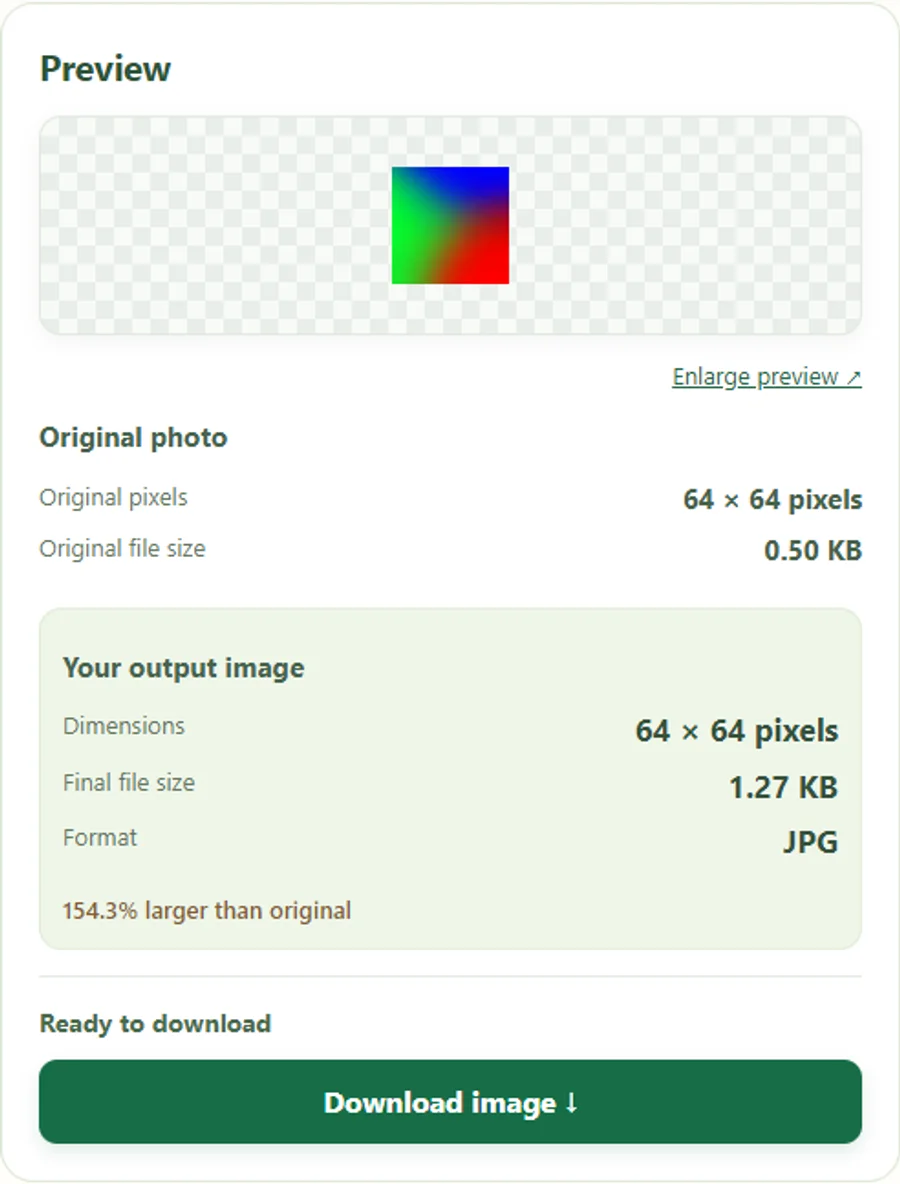
This example uses a repository test fixture, not a customer photo. We opened the HEIC in the current converter and inspected the exported JPG.
If your HEIC will not open
- Renaming the extension
- Changing .heic to .jpg leaves the image data unchanged. Convert it instead.
- Unsupported or damaged file
- A file can have the right extension but contain an unsupported variant or incomplete data. Try exporting a JPG from the device or app that created it.
- A collection or animation
- This workflow supports still images. Do not expect it to preserve collections, animation or the motion part of a Live Photo.
- Different colours or metadata
- The new JPG may differ in colour appearance or metadata. Review it and keep your original.
Conversion alone does not guarantee an upload-size limit. Check the download using Image information, then use Image compressor if your destination permits it. Use Resize image if you also need different dimensions.
Want future iPhone photos in JPEG?
Apple describes a Most Compatible camera setting that saves new photos as JPEG on supported devices. It affects future captures; it does not convert your existing library. See Apple’s HEIF and HEVC guidance for current instructions and transfer behaviour.
For official photo applications, check whether conversion is allowed. FileMelon does not guarantee acceptance by an application portal.